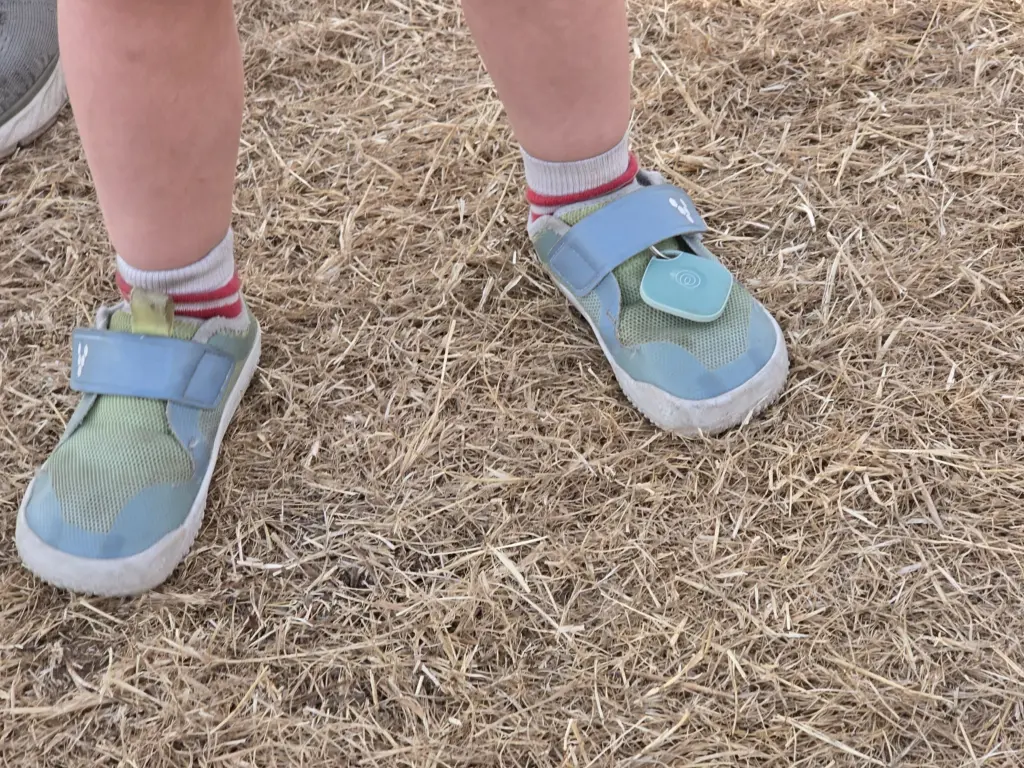
Keeping tabs on a child in a packed festival crowd is one of the more stressful parts of a family day out, so we put Life360’s Tile trackers, and the Life360 app itself, to the test this summer.
We attached a Tile Sticker to our child’s shoe and kept a Tile Slim (the card-sized version) in our wagon. Both are small, light and easy to fit without getting in the way. Setup was simple: press the button, pair with the app, and they show up straight away on the family map inside Life360.
How the Tile Trackers Actually Work
It’s worth understanding what these trackers can and can’t do before relying on one for a child at a busy event. Tile trackers use Bluetooth, not GPS, so their own signal only reaches a limited distance, typically up to a few hundred feet. If your child wanders further than that, the Tile shows its last known location rather than a live position, updating again if it comes within range of your phone or another nearby Tile or Life360 app user thanks to the wider finding network.
In practice, at a festival with thousands of phones around, we found the last-known-location updates came through often enough to be genuinely reassuring, but it’s not the same as a live GPS dot moving in real time. We’d treat it as a helpful extra layer rather than a replacement for keeping an eye on your child directly.
The Life360 App
The Life360 app itself is built around real-time GPS location sharing between phone-carrying family members, alongside driving reports, place alerts and an SOS button. Tile trackers plug into the same app, so everyone and everything appears on one map rather than juggling separate apps. The free tier covers the basics, while paid Silver, Gold and Platinum plans add extras like longer location history and emergency dispatch support.
For our use case, keeping track of a young child’s shoe and a wagon full of festival gear, the combination worked well. It won’t replace watching your child closely in a crowd, but as a backup if you get separated, it gave us real peace of mind.
Setting Up a Circle
Everything in Life360 revolves around Circles, the private groups you create to share locations with. Setting one up took us a few minutes:
- Open the app and tap the Circle Switcher at the top of the main screen
- Tap “Create a Circle” and give it a name (ours was simply “Family”)
- Go to Settings, then Circle Management, then Add Circle Members
- Send the invite code to each family member, who’ll need the app installed and their own account to join
Invite codes expire after 72 hours, so it’s worth sending them out shortly before you need them. Only someone with a valid invite code can join a Circle, so there’s no risk of anyone outside the family seeing your locations. The person who creates the Circle becomes its admin by default, though admin status can be handed to another member later if needed.
You can belong to more than one Circle at a time, which is useful if you want a smaller group just for a festival trip alongside your usual family Circle. Once everyone was added, our Tile trackers and each family member’s live location all appeared together on the same map, which made the festival a lot less stressful to navigate as a group.